 Relistic
Find and organize your inventory
Use tabs, filters, favorites, private notes and the Duplicates tab to keep your inventory tidy.
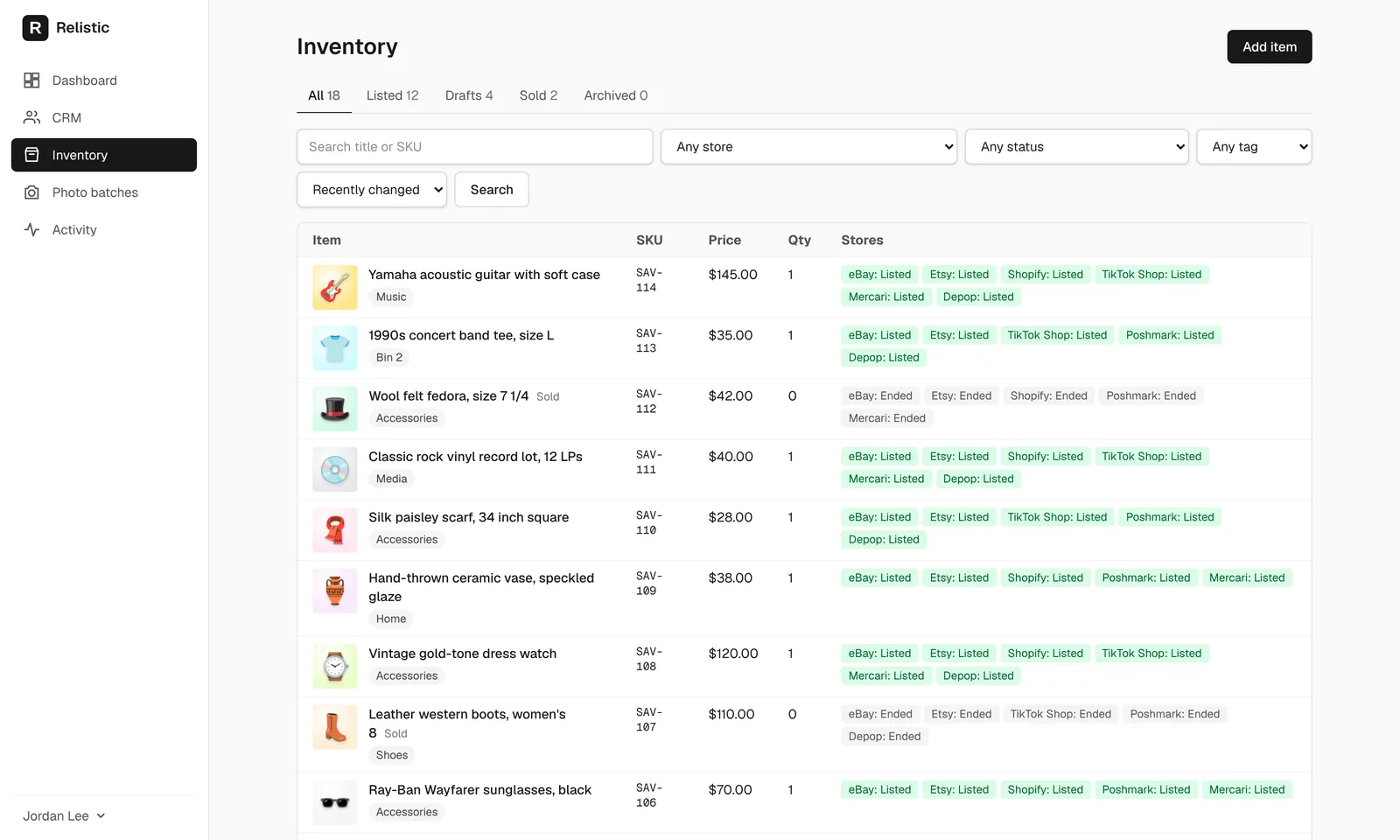
Tabs
Click Inventory in the left menu. The tabs along the top sort your items:
| Tab | What's in it |
|---|---|
| All | Everything except archived items. |
| Listed | Items set to Active. |
| Drafts | Items not listed anywhere yet. |
| Scheduled | Drafts set to post later, in the order they'll go up. |
| Sold | Items with none left. |
| Delisted | Active items that were taken off their stores and aren't up anywhere. |
| Favorites | Items you starred. |
| Duplicates | Items that look like the same thing entered twice. |
| Archived | Items you archived. |
Search and filters
Type in Search title or SKU, choose a store, status or tag, and click Search. The status filter also finds problems: Needs attention, Waiting in extension, Active but not listed anywhere and Missing SKU.
Work on items right from the list
- Favorite: click the star next to an item.
- Cost and private notes: click the box in the row, type, and press Enter. Notes are never sent to a store.
- Missing SKU: this badge means the item still has an automatic SKU from a batch or import. Open it to type your own.
- Store menu: click Options ▾ on a store to View on the store, Edit for that store only, Take off that store, or Move to another item if a listing got linked to the wrong item.
When listings fail
If some listings didn't post or update, a Some listings failed to post banner appears at the top. Click See which, fix what's missing, then click Retry. To clear them instead, click Discard and confirm: listings that never went up are unticked for that store, and live listings stay up.
Duplicates
The Duplicates tab finds items that may be the same thing entered twice: very similar titles, SKUs that only differ by punctuation or leading zeros, and items that share a photo. Each row says which item it looks like (for example Same photo as), and look-alikes sit next to each other so you can compare.
- If they really are the same, archive the extra one, or use Options ▾, Move to another item to join its listings to the one you keep.
- If they're different items, click Not a duplicate and the row disappears from the tab.
Still stuck? Email angela.b@apeirosmarketing.com and we'll help.